
Anúncios
Transform Your Documents into Digital Files Instantly
Start Scanning Now
In today’s digital-first world, the ability to quickly convert physical documents into digital formats has become essential for professionals, students, and anyone managing paperwork. Document scanning apps have revolutionized how we handle everything from receipts and contracts to handwritten notes and important certificates, turning our smartphones into powerful portable scanners.
Whether you’re working remotely, organizing your home office, or simply trying to reduce paper clutter, choosing the right scanning application can dramatically improve your productivity and document management workflow. Let’s explore the best options available and how to make the most of these incredible tools. 📱
Anúncios
Why Document Scanning Apps Have Become Indispensable
The transition from physical to digital documentation isn’t just a trend—it’s a fundamental shift in how we work and organize information. Traditional scanners are bulky, expensive, and inconvenient, requiring you to be in a specific location to digitize documents. Mobile scanning apps eliminate these barriers entirely.
Modern scanning applications use advanced image processing algorithms that can automatically detect document edges, correct perspective distortion, enhance text readability, and remove shadows or background noise. The result? Professional-quality scans that rival dedicated scanning hardware, all from a device that fits in your pocket.
Anúncios
Beyond simple image capture, these apps offer features like optical character recognition (OCR), which transforms scanned text into editable and searchable content. This means you can find specific information within hundreds of documents in seconds, copy text directly from scanned pages, and even translate documents on the fly. 🔍
Top Features to Look for in Scanning Applications
Not all document scanning apps are created equal. Understanding which features matter most for your specific needs will help you choose the perfect tool for your workflow.
Automatic Edge Detection and Image Enhancement
The best scanning apps use intelligent algorithms to automatically identify document boundaries, even when photographed at an angle or against cluttered backgrounds. This feature saves enormous amounts of time by eliminating manual cropping and adjustment.
Image enhancement capabilities should include automatic brightness and contrast optimization, color correction, and the ability to convert scans to black-and-white or grayscale for clearer text documents. Premium apps also offer perspective correction that makes even hastily photographed documents look professionally scanned.
OCR Technology for Text Recognition
Optical Character Recognition is perhaps the most transformative feature in modern scanning apps. This technology analyzes the visual patterns in your scanned images and converts them into actual text data that can be edited, searched, and copied.
Quality OCR engines support multiple languages, maintain formatting, and achieve high accuracy rates even with handwritten text or complex layouts. This functionality turns static images into dynamic, interactive documents that integrate seamlessly with your digital workflow. ✨
Cloud Integration and Multi-Platform Sync
The ability to automatically backup scans to cloud storage services ensures your documents are safe, accessible from any device, and easily shareable with colleagues or clients. Look for apps that integrate with popular platforms like Google Drive, Dropbox, OneDrive, and iCloud.
Multi-device synchronization means you can scan a document on your phone during a meeting and access it immediately on your tablet or computer when you return to your desk. This seamless ecosystem approach is essential for modern productivity.
Leading Document Scanning Apps Compared
Let’s examine the most popular and capable scanning applications available across iOS and Android platforms, each offering unique strengths for different use cases.
Adobe Scan: Professional-Grade Scanning
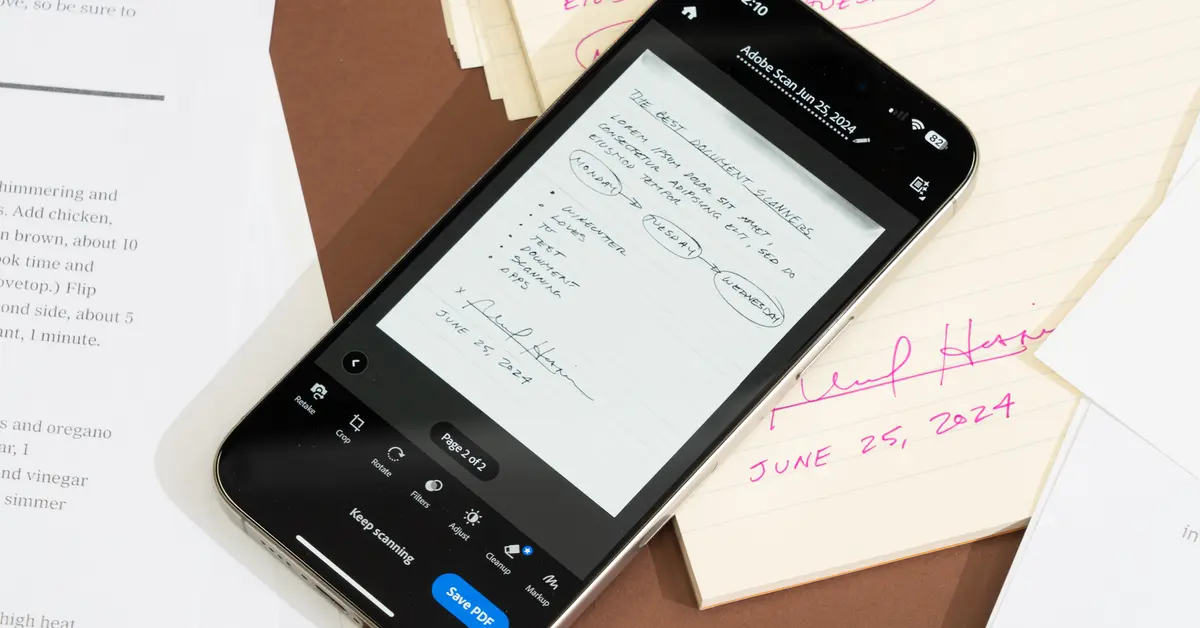
Adobe Scan leverages the company’s extensive expertise in document technology to deliver exceptional scanning quality. The app automatically captures documents when it detects stable framing, applies intelligent image cleanup, and integrates seamlessly with Adobe’s ecosystem of productivity tools.
The free version provides unlimited scans with OCR capabilities, making it an excellent choice for users who need reliable text recognition without subscription fees. Advanced features include form field detection, business card scanning with automatic contact creation, and direct integration with Adobe Acrobat for further editing.
Adobe Scan excels at handling complex documents with mixed content types, maintaining high accuracy even with challenging layouts or lower-quality source materials. The app’s clean interface makes it accessible to beginners while offering enough power for professional use. 📄
Microsoft Lens: Versatility Meets Productivity
Formerly known as Office Lens, Microsoft Lens is deeply integrated with the Microsoft 365 ecosystem, making it ideal for users already invested in Outlook, OneNote, Word, and Teams. The app offers specialized scanning modes for documents, whiteboards, business cards, and photos.
Whiteboard mode is particularly impressive, using advanced algorithms to remove glare and shadows while preserving the clarity of handwritten notes and diagrams. This makes it invaluable for capturing brainstorming sessions, classroom lectures, or meeting notes.
The app’s direct integration with OneNote creates a powerful knowledge management system where scanned content becomes fully searchable and organized alongside your typed notes. For business users, the ability to save scans directly to SharePoint or Teams channels streamlines collaboration workflows.
CamScanner: Feature-Rich and Established
One of the earliest document scanning apps to gain widespread popularity, CamScanner continues to evolve with comprehensive features and reliable performance. The app offers multiple scanning modes, batch scanning capabilities, and extensive editing tools for post-processing.
CamScanner’s collaboration features allow multiple users to work on document collections, making it suitable for team environments. The app also includes annotation tools, digital signature support, and the ability to create folders and organize documents with tags for easy retrieval.
While some advanced features require a premium subscription, the free tier provides solid functionality for occasional users. The app’s large user base has resulted in polished user experience and regular updates addressing common scanning scenarios. 🚀
Google Drive’s Built-in Scanner
Many users don’t realize that Google Drive includes a surprisingly capable document scanner accessible directly through the mobile app. While not as feature-rich as dedicated scanning apps, it offers the advantage of immediate cloud storage without additional apps.
The scanner automatically detects document edges, applies basic image enhancement, and saves files as searchable PDFs through Google’s OCR technology. For users already organizing their digital life through Google’s ecosystem, this built-in option provides convenient, straightforward scanning.
The main limitation is fewer editing options and less sophisticated image processing compared to specialized apps. However, for quick scans that need to be immediately accessible in your existing Google Drive folder structure, it’s an excellent zero-friction solution.
Maximizing Scan Quality: Pro Tips and Techniques
Even the best scanning app can only work with the image you provide. Following these proven techniques will dramatically improve your scan quality and reduce the need for post-processing.
Lighting and Environment Setup
Good lighting is the foundation of quality scans. Position yourself so that light sources illuminate the document evenly without creating harsh shadows or reflections. Natural indirect light often produces the best results, but well-placed artificial lighting works equally well.
Avoid scanning near windows with direct sunlight, which can create extreme contrast and wash out details. If you frequently scan documents, consider setting up a dedicated scanning area with consistent overhead lighting that eliminates shadows across the document surface. 💡
Document Positioning and Camera Technique
Hold your device parallel to the document surface rather than at an angle. Most scanning apps correct perspective distortion, but starting with a straight-on view produces cleaner results with less processing artifacts.
Ensure the entire document fits within the camera frame with some margin around the edges. This gives the edge detection algorithm clear boundaries to work with. Keep your hands steady or use a surface to stabilize your device—many apps include visual guides to help you maintain proper alignment.
Choosing the Right Scanning Mode
Most apps offer different scanning modes optimized for specific document types. Color mode preserves all visual information and works best for photos, diagrams, or documents where color conveys meaning. Grayscale mode reduces file size while maintaining tonal detail, ideal for documents with images or shading.
Black-and-white mode creates the smallest files and often the clearest text, making it perfect for text-heavy documents like contracts, articles, or forms. Experiment with different modes to find which produces the best balance of readability and file size for your specific documents. 📊
Privacy and Security Considerations
When scanning sensitive documents like financial statements, medical records, or legal contracts, understanding how your chosen app handles data privacy becomes critically important.
Review the app’s privacy policy to understand where scans are stored, whether they’re encrypted during transmission and storage, and who has potential access to your documents. Apps that process OCR on-device rather than on remote servers offer better privacy protection for sensitive content.
Consider using apps that support local storage or encrypted cloud storage for confidential documents. Many professional-grade scanning apps offer password protection for individual documents or entire collections, adding an essential security layer for sensitive materials.
For highly confidential documents, evaluate whether you need scanning apps that comply with specific regulatory standards like HIPAA for healthcare information or GDPR for European data protection requirements. 🔒
Integrating Scanned Documents into Your Workflow
The true value of document scanning emerges when scans integrate seamlessly into your broader productivity ecosystem rather than becoming isolated files.
Naming Conventions and Organization Systems
Develop consistent naming conventions for scanned documents that make them easy to find later. Include date stamps, document types, and relevant keywords in filenames. For example: “2024-01-15_Invoice_ClientName_ProjectID.pdf” provides much more context than “Scan001.pdf”.
Create a logical folder structure that mirrors how you think about and access documents. Consider organizing by category (Receipts, Contracts, Medical), by date (2024/January), by project, or by a combination that suits your workflow.
Automation and Batch Processing
Many advanced scanning apps support batch scanning, allowing you to capture multiple pages in sequence and combine them into a single multi-page PDF. This feature is invaluable when digitizing lengthy documents, receipts collections, or complete files.
Explore automation options like automatic uploads to specific cloud folders based on document type, scheduled backups, or integration with task management systems that create follow-up actions based on scanned content. These automations transform scanning from a manual task into an integrated system component. ⚙️
Common Scanning Challenges and Solutions
Even experienced users encounter occasional difficulties when scanning documents. Understanding these common issues and their solutions will save frustration and improve results.
Dealing with Glossy or Reflective Documents
Laminated cards, glossy photos, or documents in plastic sleeves create reflections that interfere with scanning. Position these materials at a slight angle to the light source rather than flat, allowing reflections to bounce away from the camera rather than directly into it.
Some apps include anti-glare modes specifically designed for reflective surfaces. Alternatively, scan these documents in diffused lighting conditions or use a polarizing filter if your setup allows for accessory lenses.
Handling Wrinkled or Damaged Documents
Old documents, receipts, or papers that have been folded develop creases that create shadows and distort text. Gently flatten these documents under a clear glass sheet or heavy book before scanning. The pressure smooths wrinkles while the transparent cover keeps the document flat during capture.
For particularly valuable or fragile historical documents, consider using a dedicated scanning service rather than risking damage through repeated handling and flattening attempts. 📜
Improving OCR Accuracy
When OCR produces poor results, the usual culprit is image quality rather than the OCR engine itself. Ensure sufficient resolution by not zooming out too far—text should be clearly readable on your device screen before capturing.
Use black-and-white mode for text documents, as it maximizes contrast and helps OCR algorithms distinguish characters from background. If your app allows manual cropping before OCR processing, remove any non-text elements that might confuse the recognition engine.
The Future of Document Scanning Technology
Document scanning continues to evolve rapidly, with artificial intelligence and machine learning driving impressive new capabilities that will further transform how we interact with physical documents.
Emerging technologies include real-time translation overlaid on scanned documents, automatic extraction and categorization of key information like dates and amounts, and intelligent document classification that routes scans to appropriate destinations without manual intervention.
Advanced AI models are improving handwriting recognition to the point where even cursive scripts and individual handwriting styles can be accurately converted to editable text. This breakthrough will unlock vast archives of handwritten historical documents and make personal note-taking more versatile. 🤖
As smartphone cameras continue to improve with higher resolutions, better low-light performance, and computational photography techniques, the quality gap between dedicated scanners and mobile scanning apps will continue to narrow, making professional-grade document digitization universally accessible.
Making Your Document Scanning Choice
Selecting the ideal document scanning app depends on your specific needs, existing technology ecosystem, and how frequently you digitize documents. For occasional users who primarily need basic PDF creation, free options like Google Drive’s built-in scanner or Adobe Scan provide excellent value.
Power users who scan frequently and need advanced features like extensive OCR, collaboration tools, and sophisticated organization capabilities should explore premium options like the full versions of CamScanner or specialized business-focused applications.
The best approach is often to download several highly-rated apps and test them with your typical documents in your usual environment. Pay attention to which interface feels most intuitive, which produces the best quality scans of your specific document types, and which integrates most smoothly with your existing workflow and storage systems.
Remember that the perfect scanning app is the one you’ll actually use consistently. A slightly less feature-rich app that fits naturally into your routine will deliver more value than a powerful application that feels cumbersome and gets abandoned. Start with the basics, master those features, and gradually explore advanced capabilities as your needs evolve. 🎯
Document scanning technology has transformed smartphones into incredibly capable digitization tools that rival traditional scanners while offering far greater convenience and flexibility. By choosing the right app and applying best practices for image capture, you can create a paperless workflow that saves space, improves organization, and makes your important documents accessible whenever and wherever you need them.
